Login
This document explains how to log in to DS for Mobile and how to troubleshoot authentication issues.
1. Login Overview
DS for Mobile6 app provides two login methods.
-
Security Server Login (SCI Server Standalone)– For internal users
-
Integrated Login (SHIELD ID)– For users using the Security365 service
2. Guide by Login Method
2) Integrated Login (SHIELD ID)
Users utilizing the Security365 serviceIntegrated Authentication AccountYou must log in with.
Login Procedure
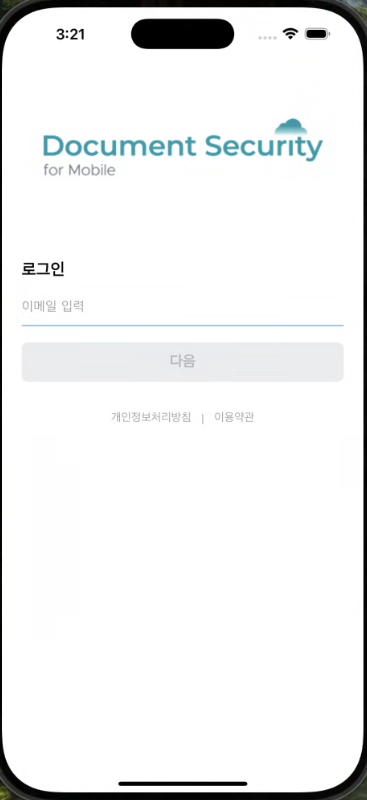
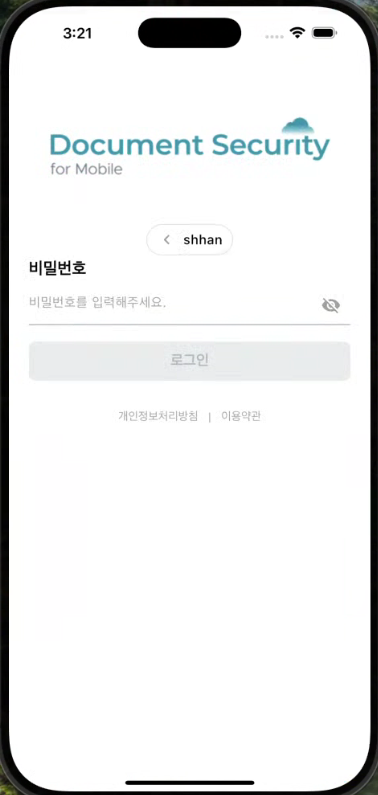
- When you first run the app, the document security server login screen is displayed.
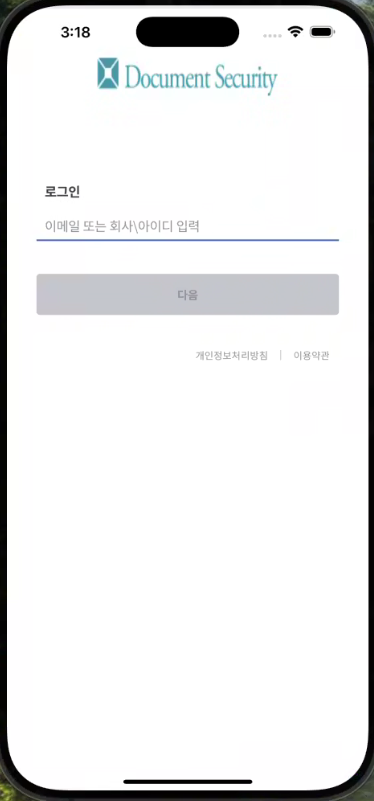
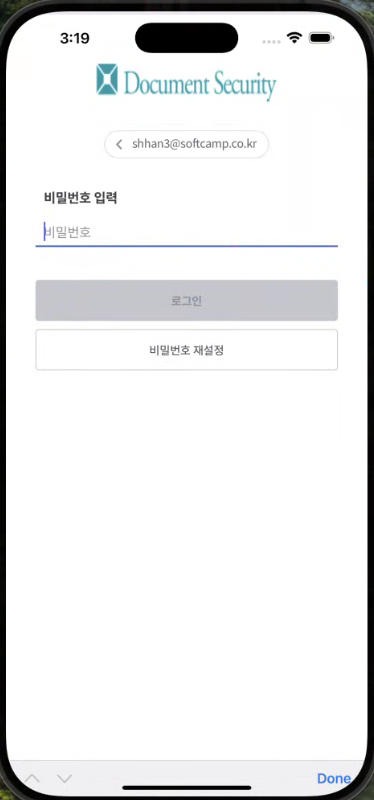
→ After entering ID/PWIdentifying as a Security365 userIf successful, you will be automatically redirected to the unified login screen. - Enter your ID and password on the integrated authentication login screen.
- Upon successful login, you will be redirected to the app's main screen.
| Document Security Server ID/Email Input | Enter password |
|---|---|
 |  |
| Integrated login ID/Email input | Enter password |
|---|---|
 |  |
Authentication Method (to be supported later)
-
Instead of a password after the first login**Biometric authentication (fingerprint/facial recognition)**Login possible with
-
**OTP Authentication (Microsoft Authenticator, etc.)**support
4. Login Errors and Verification Methods
| situation | Cause | Action Method |
|---|---|---|
| Login Failed (Password Error) | ID/PW incorrect input | Retry with accurate information |
| Connection Error | Network instability | Check Wi-Fi or VPN connection |
| SHIELD ID authentication failed | OTP or biometric authentication error | Retry or contact administrator |
| Automatic login not working | Policy Change or Device Reset | Manual login retry needed |
warning
Chimgo
- For Security365 users, the document security server login is used for mapping only once at the first time.
- After this, it will automatically switch to single sign-on.
- You may need to log in again when there is an app update or a change in account policy.